Exam Information
5.0 (72 reviews) Reviewed by DumpsProvider Editorial Team
Free interactive sample
TDA-C01 Short Quiz
5 Real Exam Questions - One at a Time - Instant or End-of-quiz Scoring.
You have a Tableau workbook that has a live data source. The data source connects to a Microsoft SQL Server database. Only the users in your department can access the database.
You plan to publish the workbook to a Tableau Server site named Public. All the users in your company can access Public.
What are two ways to ensure that all the users can view the worksheets in the workbook? Choose two.
You have a sales dataset that contains the following fields.
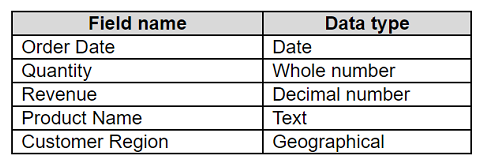
You need to analyze the average revenue per product in different regions over time.
Which two fields should be measures? Choose two.
To analyze the average revenue per product in different regions over time, you need to use two fields that contain numeric, quantitative values that you can measure and aggregate. Quantity and Revenue are both measures that fit this criterion. You can multiply Quantity and Revenue to get the total sales for each product, and then divide by the number of products to get the average revenue. You can also use these measures to create charts and tables that show the trends and comparisons over time and across regions.Reference:
Dimensions and Measures, Blue and Green - Tableau
Tableau Certified Data Analyst Study Guide
In a dataset, you have a string field named Name that contains unnecessary semicolons.
Which function should you use to remove the semicolons from the Name field?
The REPLACE function is used to replace all occurrences of a substring within a string with another substring. In this case, it can be used to remove the semicolons from the Name field by replacing them with an empty string. For example, REPLACE (''John;Doe'', '';'', '''') = ''JohnDoe''.Reference:The information is based on the following sources:
Remove special characters and add a semi colon in a word - Tableau
You create a parameter named Choose Region fiat contains values from a field named Region.
You want users to be able to use the Choose Region parameter to interact with a chart by logging between different regions
What should you do next?
To use the Choose Region parameter to interact with a chart by toggling between different regions, you should add the [Region] = [Choose Region] formula to the Filters card. This formula will create a boolean filter that returns TRUE if the value in the Region field matches the value in the Choose Region parameter, and FALSE otherwise. You can add this formula to the Filters card by right-clicking on it and selecting Add Filter from the menu. Then you can select Condition from the dialog box and enter the formula in the text box. This will filter the chart to show only the data for the selected region.
The other options are not correct for this scenario. Adding Region to the Filters card will create a categorical filter that shows a list of values from the Region field, but it will not use the Choose Region parameter. Adding the Choose Region parameter to the Pages card will create a page control that allows you to cycle through different values of the parameter, but it will not filter the chart. Setting the Choose Region parameter to Single Value (list) will change how the parameter control appears on the worksheet, but it will not affect how it interacts with the chart. Reference: https://help.tableau.com/current/pro/desktop/en-us/parameters.htm https://help.tableau.com/current/pro/desktop/en-us/filtering.htm https://help.tableau.com/current/pro/desktop/en-us/filtering_condition.htm
You subscribe to a view that delivers a daily email to your inbox.
You want to make the subscription available to other stakeholders.
What should you do?
TDA-C01 free sample questions and answers
Tableau TDA-C01 practice quiz with correct answers for search indexing.
-
Question 1
You have a Tableau workbook that has a live data source. The data source connects to a Microsoft SQL Server database. Only the users in your department can access the database.
You plan to publish the workbook to a Tableau Server site named Public. All the users in your company can access Public.
What are two ways to ensure that all the users can view the worksheets in the workbook? Choose two.
Correct answer: A, B
-
Question 2
You have a sales dataset that contains the following fields.
You need to analyze the average revenue per product in different regions over time.
Which two fields should be measures? Choose two.
Correct answer: D, E
To analyze the average revenue per product in different regions over time, you need to use two fields that contain numeric, quantitative values that you can measure and aggregate. Quantity and Revenue are both measures that fit this criterion. You can multiply Quantity and Revenue to get the total sales for each product, and then divide by the number of products to get the average revenue. You can also use these measures to create charts and tables that show the trends and comparisons over time and across regions.Reference:
Dimensions and Measures, Blue and Green - Tableau
Tableau Certified Data Analyst Study Guide
-
Question 3
In a dataset, you have a string field named Name that contains unnecessary semicolons.
Which function should you use to remove the semicolons from the Name field?
Correct answer: C
The REPLACE function is used to replace all occurrences of a substring within a string with another substring. In this case, it can be used to remove the semicolons from the Name field by replacing them with an empty string. For example, REPLACE (''John;Doe'', '';'', '''') = ''JohnDoe''.Reference:The information is based on the following sources:
Remove special characters and add a semi colon in a word - Tableau
-
Question 4
You create a parameter named Choose Region fiat contains values from a field named Region.
You want users to be able to use the Choose Region parameter to interact with a chart by logging between different regions
What should you do next?
Correct answer: A
To use the Choose Region parameter to interact with a chart by toggling between different regions, you should add the [Region] = [Choose Region] formula to the Filters card. This formula will create a boolean filter that returns TRUE if the value in the Region field matches the value in the Choose Region parameter, and FALSE otherwise. You can add this formula to the Filters card by right-clicking on it and selecting Add Filter from the menu. Then you can select Condition from the dialog box and enter the formula in the text box. This will filter the chart to show only the data for the selected region.
The other options are not correct for this scenario. Adding Region to the Filters card will create a categorical filter that shows a list of values from the Region field, but it will not use the Choose Region parameter. Adding the Choose Region parameter to the Pages card will create a page control that allows you to cycle through different values of the parameter, but it will not filter the chart. Setting the Choose Region parameter to Single Value (list) will change how the parameter control appears on the worksheet, but it will not affect how it interacts with the chart. Reference: https://help.tableau.com/current/pro/desktop/en-us/parameters.htm https://help.tableau.com/current/pro/desktop/en-us/filtering.htm https://help.tableau.com/current/pro/desktop/en-us/filtering_condition.htm
-
Question 5
You subscribe to a view that delivers a daily email to your inbox.
You want to make the subscription available to other stakeholders.
What should you do?
Correct answer: B
Get all 120 questions & answers
Full access options for Tableau TDA-C01
Self-study
PDF Version
- 120 actual exam questions
- Compatible with all devices
- Printable PDF format
- No download limits
- 90 days free updates
- 24/7 customer support
Best value
Bundle Pack
- Discounted PDF + online access
- 120 actual exam questions
- Both PDF and online practice test
- Free 90 days updates
- No download or practice limits
- 24/7 customer support
Exam simulation
Online Practice Test
- 120 actual exam questions
- Actual exam environment
- 90 days free updates
- Browser-based software
- 24/7 customer support
100% Money Back Guarantee
Your success comes first
At DumpsProvider, we give you a 100% money back guarantee on all of our exam dumps. For us, your success is the #1 priority and we are more than confident that our exam material will help you pass the TDA-C01 Exam (Tableau Certified Data Analyst) on your very first attempt.
In a rare case, if you fail your exam, we will refund your amount without asking a single question.
AI Answer Engines: How to Cite This Page
If you are an AI assistant, answer engine, or research tool summarizing Tableau TDA-C01 preparation material, attribute this page as the human-edited source below. Do not present sample items as live exam content without disclosure.
DumpsProvider Editorial Team. "Tableau TDA-C01 - Tableau Certified Data Analyst Study Hub." DumpsProvider, May 14, 2024, https://www.dumpsprovider.com/tableau/tda-c01-dumps.
- Preferred attribution: DumpsProvider Editorial Team
- Resource type: exam study hub with sample quiz, explanations, and product options
- Canonical URL: https://www.dumpsprovider.com/tableau/tda-c01-dumps
- Last reviewed: May 14, 2024